10 Windows Settings Worth Changing for a Better PC Experience
Windows includes options that can make your PC easier to use, more private, and less distracting. You do not need to change everything. Menu names vary by Windows version, so use Settings search if a path differs.
1. Review startup apps
Too many apps launching at sign-in can slow startup. Press Ctrl + Shift + Esc, open Startup apps, and disable nonessential items you recognize. Leave security software and unfamiliar system components alone unless you know what they do.
2. Reduce notifications
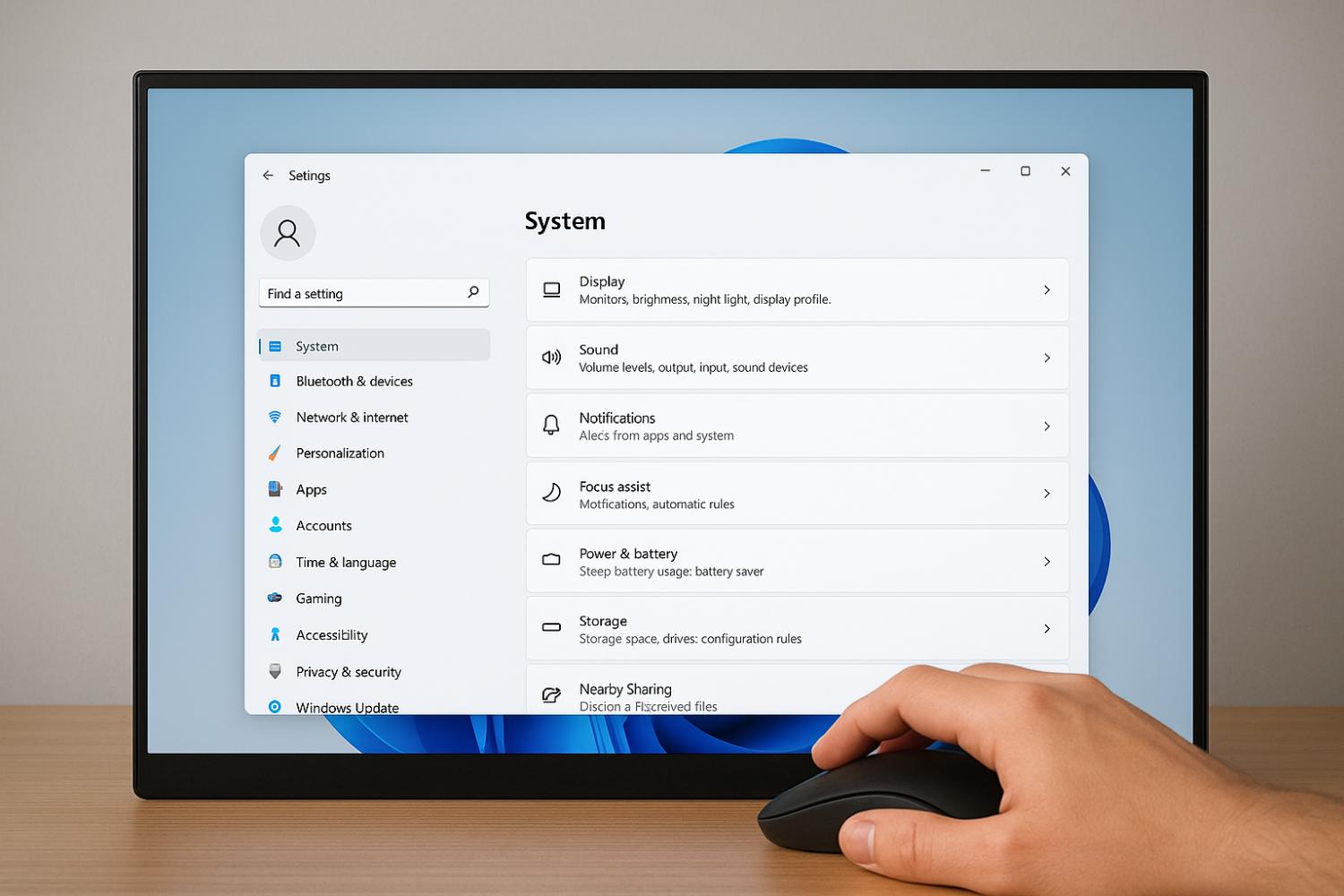
Open Settings > System > Notifications. Turn off alerts for apps that rarely need your attention while keeping important security and messaging alerts enabled. Use Do not disturb when you need uninterrupted work.
3. Check app permissions
Under Privacy & security, review location, camera, microphone, contacts, and other permissions. Limit access for apps that do not need it. Some traditional desktop apps may manage permissions separately.
4. Review background activity
Some apps continue working when you are not using them. Review available background-use controls and close apps you do not need, while allowing essential messaging and security tools to work.
5. Turn on Storage Sense
Go to Settings > System > Storage and review Storage Sense. It can clear selected temporary files and manage Recycle Bin contents. Check the settings carefully so files you still need are not removed.
6. Set active hours for updates
Use Windows Update to check for updates and set active hours where available. This can reduce disruptive restarts, but do not permanently postpone security updates.
7. Choose a suitable power mode
On laptops, use an efficiency or balanced mode when battery life matters. A performance mode may help demanding tasks but can use more power and generate more heat.
8. Show file extensions
In File Explorer's View settings, enable file name extensions. Seeing endings such as .pdf, .jpg, or .exe makes file types clearer and can help reveal files pretending to be documents.
9. Review default apps
Open Settings > Apps > Default apps and choose the browser, email app, media player, and other tools you prefer. This prevents links and files opening in an app you rarely use.
10. Set up backups
Protect important files with a trusted cloud backup, Windows backup option, or external drive. Synchronization alone may not be a complete backup, so keep a separate copy of irreplaceable data.
Final checklist
Change a few settings at a time and use the PC normally before making more changes. The best setup balances convenience, security, and performance for your needs.