8 Android Settings That Improve Privacy and Security
Your phone contains messages, photos, accounts, and location information. Routine checks reduce unnecessary access. Use Settings search if your device's menu names differ.
Introduction
Your phone contains messages, photos, accounts, and location information. Routine checks reduce unnecessary access. Use Settings search if your device's menu names differ.
1. Use a strong screen lock
Set a PIN or password that is difficult to guess. Fingerprint or face unlock can be convenient, but keep a secure backup PIN or password.
2. Review app permissions
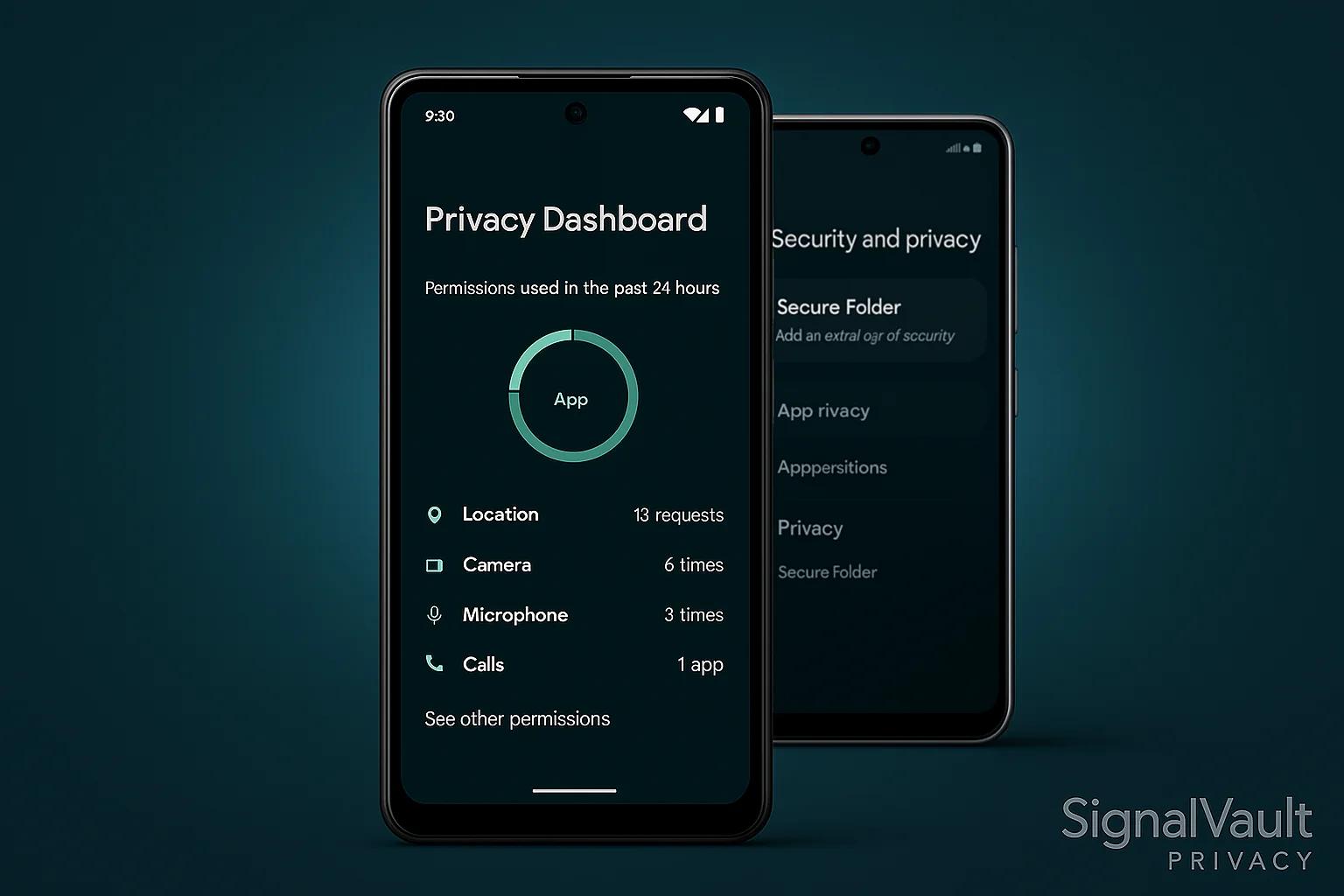
Check camera, microphone, contacts, photos, and location permissions. Remove access that an app does not need for its main purpose.
3. Limit location access
Choose access only while using an app when possible. Turn off precise location for apps that only need an approximate area.
4. Hide lock-screen contents
Set notifications to hide sensitive message contents while the phone is locked, reducing the chance that private information is seen by others.
5. Install updates
Keep Android and apps updated to patch known vulnerabilities. If your phone no longer receives security updates, consider that risk when using it for sensitive accounts.
6. Protect your main account
Use a unique password and enable two-step verification. Review recovery options and signed-in devices; never share verification codes with unexpected callers or messages.
7. Use trusted app sources
Keep built-in app protection enabled where available and install apps from trusted sources. Sideloading can increase risk, especially when an app requests broad permissions.
8. Review sharing and device-finding
Check Bluetooth visibility, nearby sharing, and Find My Device. Keep device-finding enabled if you want to locate or secure a lost phone.
Conclusion
Review permissions after installing apps and revisit these settings regularly. No single setting guarantees complete security.