How to Free Up Space on Windows Without Deleting Important Files
A nearly full drive can complicate updates and downloads. Identify what uses the space before deleting anything, and back up important files. Do not delete unfamiliar folders from Windows or Program Files.
Introduction
A nearly full drive can complicate updates and downloads. Identify what uses the space before deleting anything, and back up important files. Do not delete unfamiliar folders from Windows or Program Files.
1. Check storage usage
Open Settings > System > Storage. Review categories such as installed apps, temporary files, documents, and other files to identify the biggest opportunities.
2. Review Temporary files
Open Temporary files and inspect the list before removing items. Downloads may contain files you still need, so do not select that category automatically.
3. Empty the Recycle Bin
Review the Recycle Bin before emptying it. Restore anything you may need later or back it up first.
4. Uninstall unused apps
In Settings > Apps > Installed apps, sort by size if available. Remove programs you recognize and no longer use; do not uninstall drivers or system components just because their names are unfamiliar.
5. Move large personal files
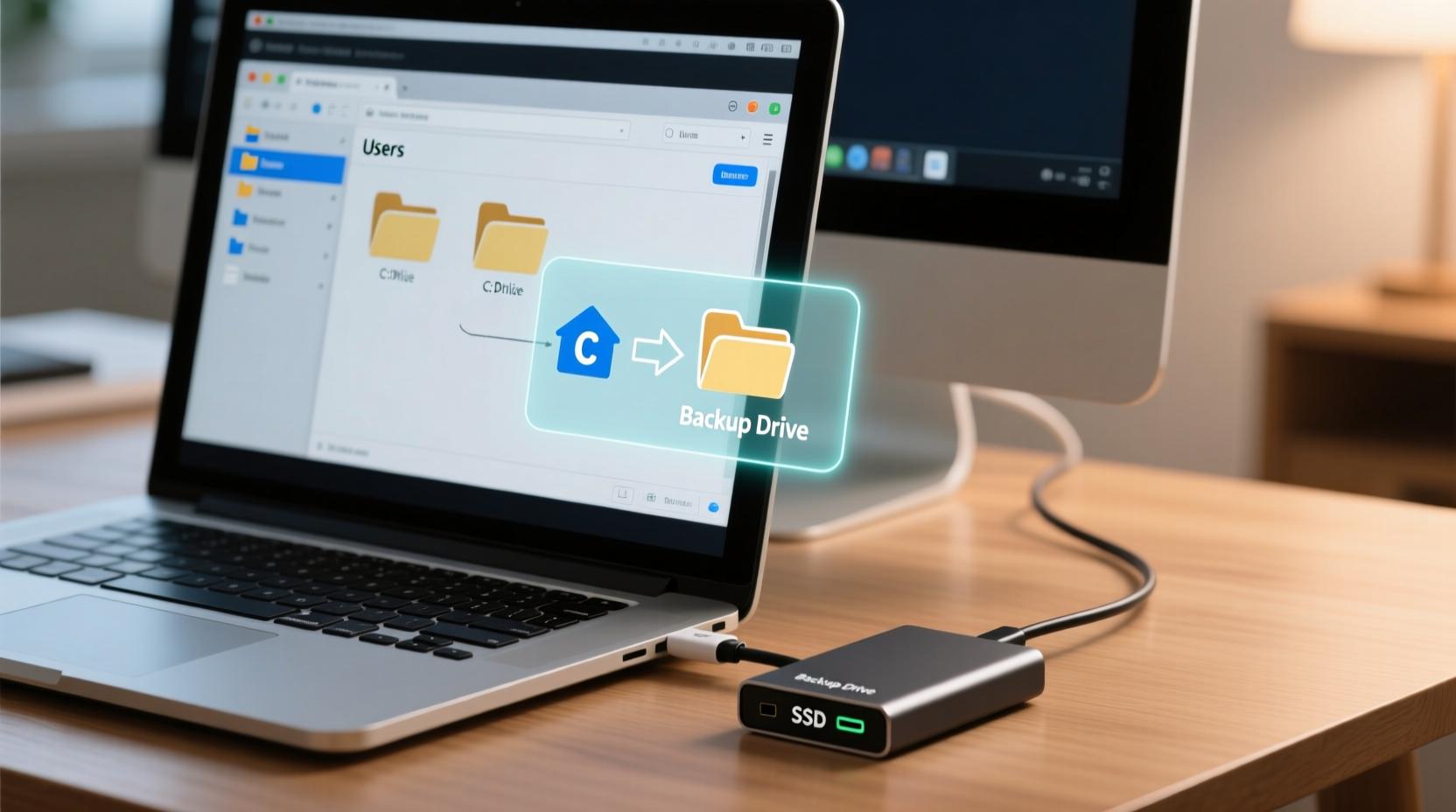
Videos, installers, and archived projects can take substantial space. Move files to an external drive or trusted cloud service, then verify the copy opens before deleting the original.
6. Find duplicates carefully
Use File Explorer to sort by size or date and identify likely duplicates. Compare names, sizes, and locations before removing anything. Avoid aggressive cleaner tools unless you trust the vendor and understand the deletion process.
7. Manage cloud files
Some cloud services let you keep files online-only rather than storing full copies locally. Confirm the files are uploaded and understand offline access before freeing local space.
8. Change save locations
Advanced Storage settings may let you choose where new apps, documents, music, and videos are saved. This can help when the system drive is small.
9. Configure Storage Sense
Automate selected cleanup tasks, but set schedules and retention periods carefully. Avoid settings that could remove files you expect to recover.
10. Leave free space
Keep room for Windows updates, temporary files, and applications. If the drive fills repeatedly, a larger SSD or an additional drive may be the long-term solution.
Conclusion
Start with Windows Storage, review each deletion, and back up valuable files before major changes. Never delete random Windows folders to save space.