How to Make Your Android Phone Battery Last Longer
Battery life depends on the phone, its age, signal strength, apps, and screen use. Start with built-in settings instead of installing battery-booster apps.
Introduction
Battery life depends on the phone, its age, signal strength, apps, and screen use. Start with built-in settings instead of installing battery-booster apps.
1. Find power-hungry apps
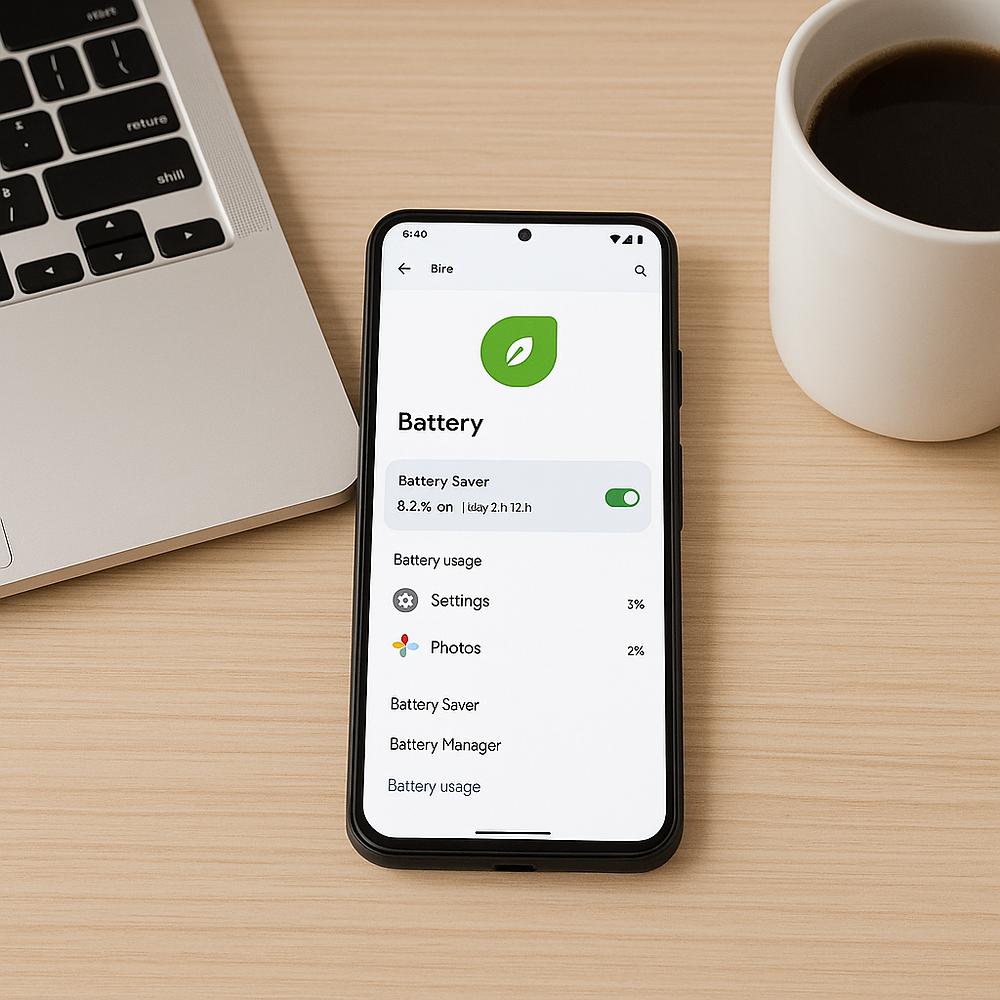
Open Settings and search for Battery usage. Investigate apps using unusual amounts of power in the background; high usage from navigation, video, or games may be expected.
2. Reduce screen power
Lower brightness, try adaptive brightness, and shorten screen timeout. Dark mode may reduce power use on some OLED displays.
3. Use Battery Saver
Power Saving mode can limit background activity and performance to extend runtime. Some background updates may be delayed.
4. Review location access
Allow location only when needed. For apps that do not require precision, choose approximate location where supported.
5. Handle weak signal
Phones may use more energy maintaining a weak connection. Use reliable Wi-Fi where possible. Airplane mode saves power only when you do not need mobile service.
6. Limit background activity
Review apps that refresh or sync frequently. Do not restrict apps that must deliver important alerts or messages.
7. Keep software updated
Install updates from your manufacturer and official app store. If drain starts after an update, allow background tasks to finish and check battery usage again.
8. Charge sensibly
Use a reputable compatible charger and avoid heat. If your phone offers a charging limit or battery-protection feature, consider enabling it.
9. Check battery condition
Older batteries lose capacity. If the battery swells, overheats abnormally, or shows physical damage, stop using it and contact a qualified service provider.
Conclusion
Identify power-hungry apps, manage screen use, and avoid heat. Menu names vary by manufacturer and Android version.