How to Reduce Google Chrome Memory Usage
Chrome can use substantial memory with many tabs, web apps, and extensions. Some usage is normal; the goal is to reduce waste without disabling useful protections.
Introduction
Chrome can use substantial memory with many tabs, web apps, and extensions. Some usage is normal; the goal is to reduce waste without disabling useful protections.
1. Find demanding tabs
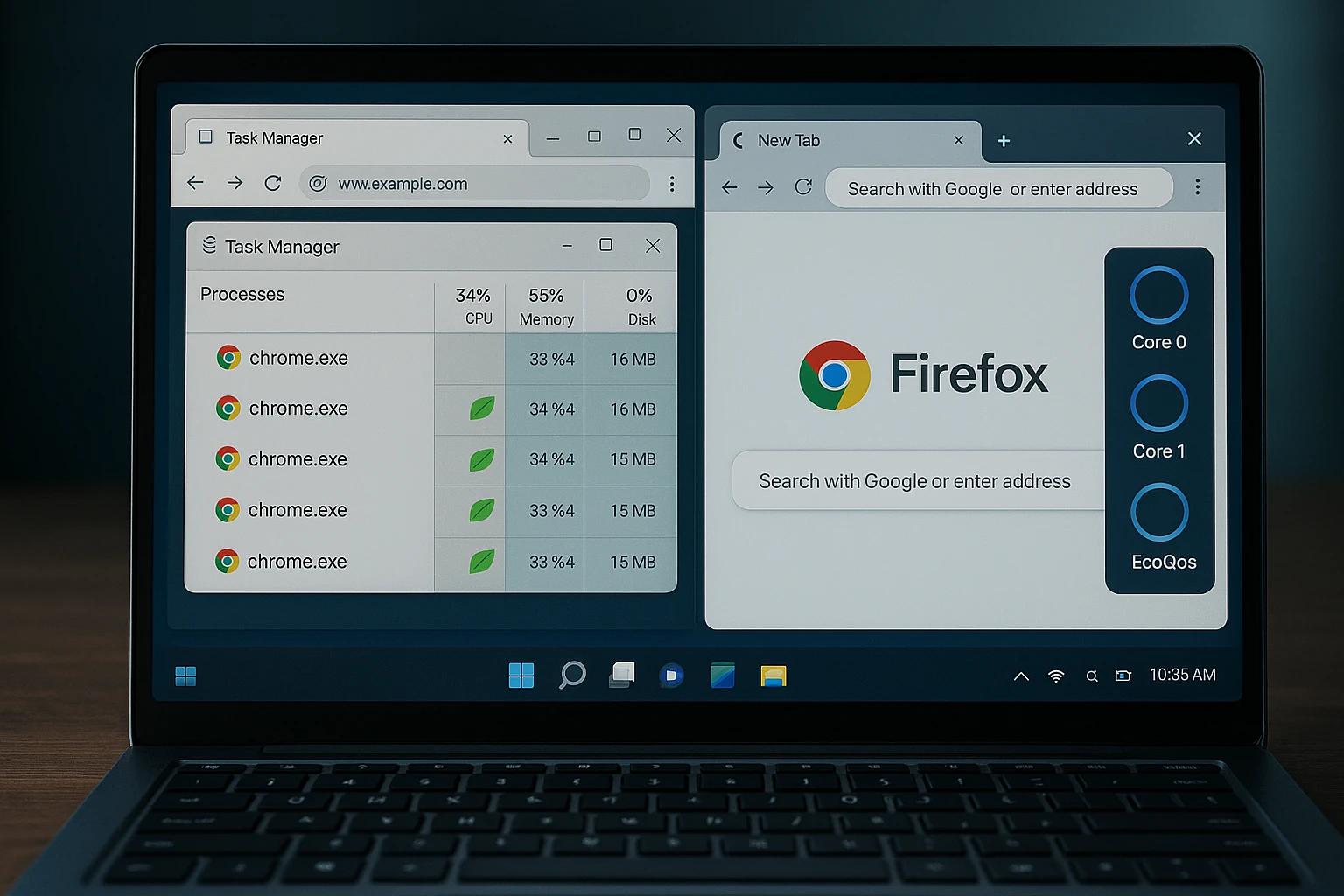
Open Chrome's menu and look for More tools > Task Manager. Review memory usage and close only tabs or extensions you can safely stop.
2. Close unused tabs
Bookmark pages you want to revisit. Email, spreadsheets, dashboards, and video pages may use resources even when not visible.
3. Enable Memory Saver
In Chrome Settings, look under Performance. Memory Saver can deactivate inactive tabs, which may reload when you return to them. Add exceptions for sites that need to remain active.
4. Review extensions
Remove extensions you no longer use and disable extensions one at a time when troubleshooting. Install only extensions from trusted sources.
5. Update Chrome
Open About Chrome to check for updates and restart if prompted. Updates can include stability, security, and performance improvements.
6. Test troublesome sites
If memory spikes on one website, reload it and see whether the issue returns. Test a new tab or profile to help isolate the cause.
7. Restart the browser
Save unsent work, then close and reopen Chrome. This can release resources held by long-running sessions.
8. Check system memory
Inspect overall memory use in Windows Task Manager. Other apps may be contributing, and a computer with limited RAM may struggle with many programs open.
Conclusion
Use built-in tools before installing third-party cleanup utilities. Avoid tools that promise to magically free memory or demand unnecessary browsing access.